SEO Toolkit
Control how search engines and AI assistants read your store: meta tags, canonical and hreflang links, structured data, sitemaps, redirects, an SEO audit and AI-written meta text.
Installation and prerequisites
SEO Toolkit requires the Magedia Core shared package (1.2 or later within major version 1). It runs on Magento Open Source and Adobe Commerce 2.4.x with PHP 8.3–8.5, and has been exercised on 2.4.9 with PHP 8.4 and the Luma theme. Everything SEO Toolkit adds to the storefront is rendered on the server, without JavaScript.
Configure access to Magedia’s private Composer repository at repo.magedia.com using the credentials issued with your purchase, then install the package and enable the modules:
composer require magedia/m2-seo-toolkit
bin/magento module:enable Magedia_Core Magedia_SeoToolkit
bin/magento setup:upgrade
bin/magento setup:di:compile
bin/magento cache:flush
Magento cron must be running. It generates AI suggestions, submits changed URLs to IndexNow, runs the nightly audit, imports Search Console data, removes expired redirects and trims the 404 log.
Magento’s GraphQL modules and Swatches module are optional. Without GraphQL, the headless fields are unavailable; without Swatches, SEO-friendly URLs still work on the other filters.
Configure SEO Toolkit
Open Stores > Configuration > Magedia > SEO Toolkit. Each group has its own switch, and most settings can differ per website or store view. Save Config, then refresh the page cache so storefront pages show the change.
Enable SEO Toolkit (default Yes): the master switch. No leaves Magento’s default meta tags in place and adds no SEO Toolkit markup in the selected scope.
The menu Magedia > SEO Toolkit holds Meta Templates, Redirects, 404 Log, Cross-Links, SEO Audit, AI Suggestions and Search Performance. Access to each is set under System > Permissions > User Roles > Magedia Extensions > SEO Toolkit.
1. Write meta templates
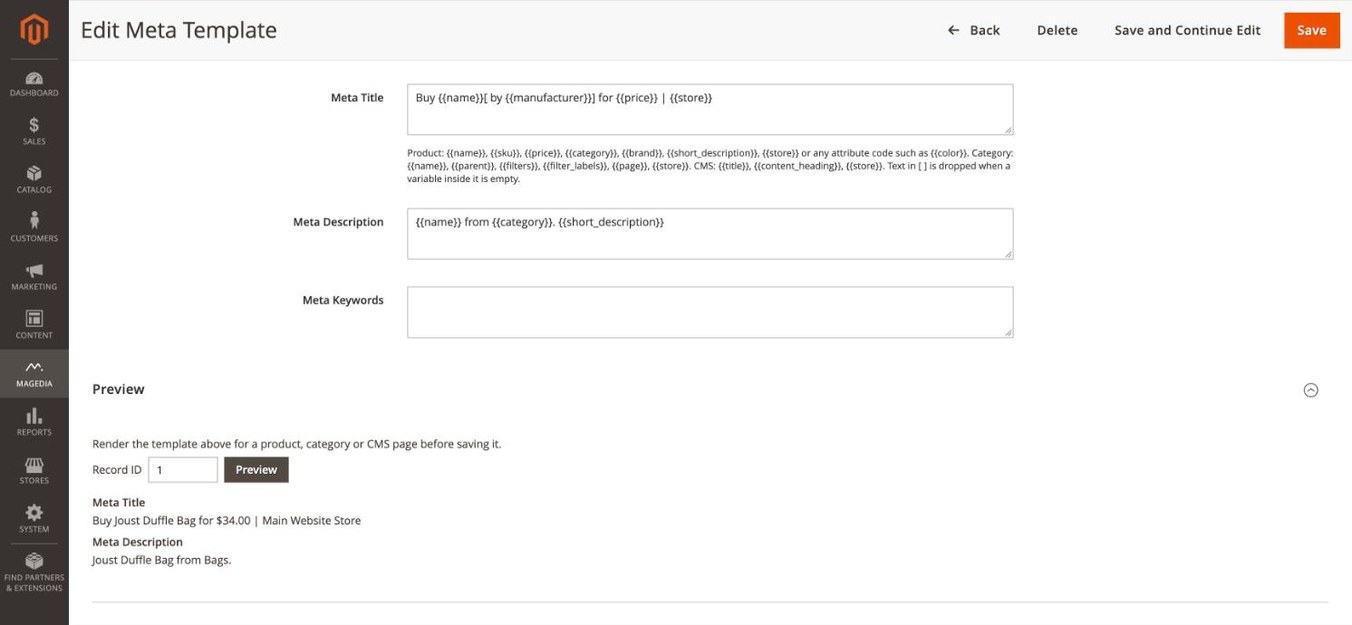
Open Magedia > SEO Toolkit > Meta Templates and click Add Template. Choose what it Applies To: product pages, category pages, filtered category pages (a category with layered navigation filters applied) or CMS pages. Pick a Store View, or All Store Views, and optionally Limit to Categories: products in those categories, or those categories and their subcategories.
Apply: "Only when the page has no meta value of its own" fills gaps and leaves values written by hand alone. "Always" replaces them. Filtered category pages always use their template, because their filters change what the page shows.
Write the Meta Title, Meta Description and Meta Keywords with variables:
- Product:
{{name}},{{sku}},{{price}},{{category}},{{brand}},{{short_description}},{{store}}, or any attribute code such as{{color}}. - Category:
{{name}},{{parent}},{{filters}}(the chosen filter values),{{filter_labels}}(filter names and values),{{page}},{{store}}. - CMS:
{{title}},{{content_heading}},{{store}}.
Wrap optional text in square brackets: Buy {{name}}[ by {{brand}}] | {{store}} drops " by …" for products without a brand. When several templates match a page, the highest Priority wins, then a store-specific template over an all-stores one.
Before saving, enter a product, category or page ID under Preview to see the result.
Add Page Number to Title and Description (default Yes) appends "| Page 2" on paginated listings so each page has its own title. Change the wording in Page Number Format.
Saving, importing or deleting templates, redirects and cross-links marks the page cache as invalid: refresh it under System > Cache Management to publish the change.
2. Canonical URLs and meta robots
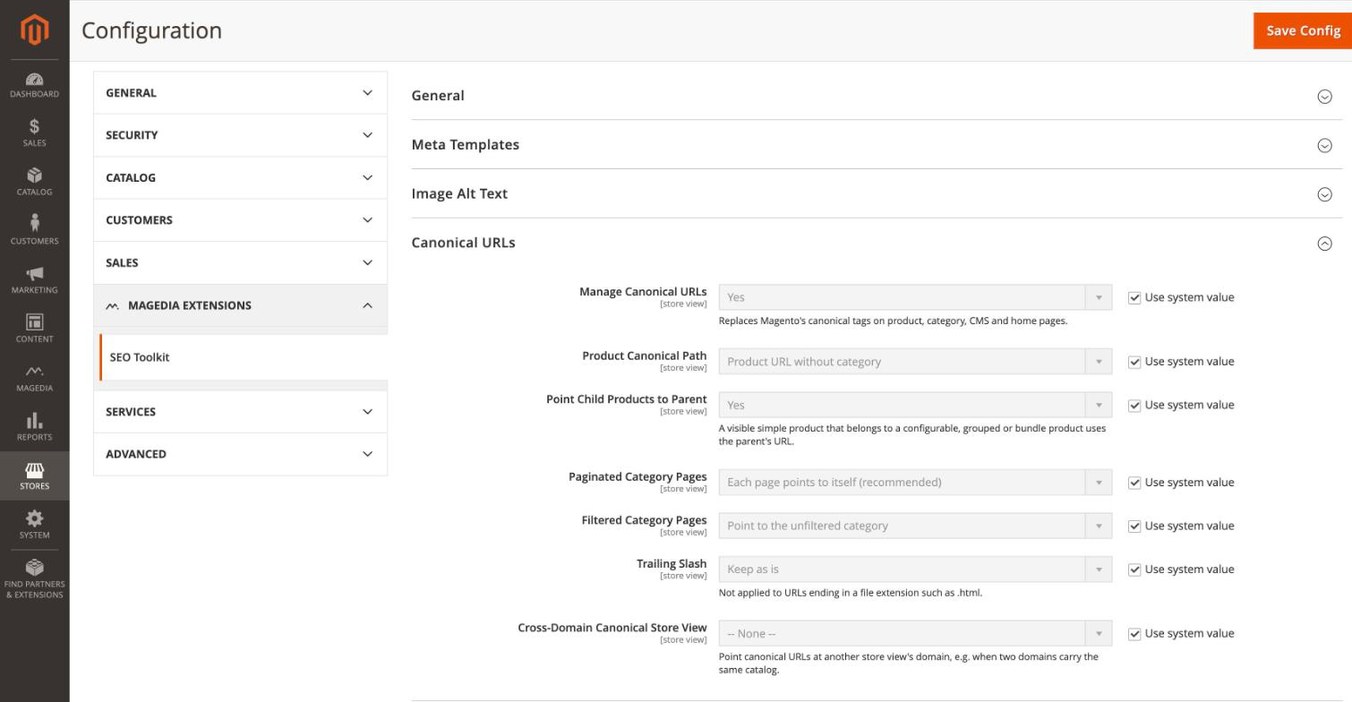
Under Canonical URLs, Manage Canonical URLs (default Yes) replaces Magento’s canonical tags on product, category, CMS and home pages.
- Product Canonical Path: the product URL without a category (default), or the shortest, longest or primary-category path.
- Point Child Products to Parent (default Yes): a visible simple product that belongs to a configurable, grouped or bundle product points to the parent’s page.
- Paginated Category Pages: each page points to itself (recommended by Google) or all pages point to page 1.
- Filtered Category Pages: point to the unfiltered category (default), or keep the filter in the canonical URL.
- Trailing Slash and Cross-Domain Canonical Store View handle stores served on several domains.
Under Meta Robots, choose the robots value for Filtered, Sorted, Paginated and Search Result pages. The defaults keep filtered, sorted and search pages out of the index while their links are still followed. Custom Rules take one URL pattern and value per line, for example customer/* NOINDEX,NOFOLLOW; the shipped rules cover account, checkout, wishlist and comparison pages.
3. Hreflang for multilingual stores
Add Hreflang Tags (default Yes) links each product, category, CMS page and home page to the same page in your other store views. Choose whether to link the store views of one website or of All websites, when each language runs on its own website or domain.
The code comes from each store view’s locale (en_US becomes en-US); set Hreflang Code at store-view scope to override it, for example "en" or "en-GB". Pick an x-default Store View for visitors whose language you don’t serve. Match CMS Pages By URL key (separate pages per store view that share an identifier) or page ID (one page assigned to several store views).
4. Structured data and social sharing
Structured Data (JSON-LD) adds what Google uses for rich results:
- Product: price, availability, brand, optional GTIN and MPN, and Rating and Reviews from Magento’s reviews. Configurable, bundle and grouped products show a price range.
- Shipping details and Return policy: enter the rate, countries, handling and transit days, return window and who pays return shipping.
- Breadcrumbs on product and category pages, Organization and WebSite with Search Box on the home page.
- FAQ: on a CMS page, fill FAQ for Structured Data under Search Engine Optimization: each question on its own line with the answer below it, and a blank line between questions. The same questions should appear in the page content.
- Local Business: enable it and enter your address, coordinates and opening hours (for example
Mo-Fr 09:00-18:00) when customers can visit you.
Remove Theme Microdata (default Yes) strips Luma’s older microdata, and Remove Duplicate JSON-LD (default Yes) removes Product, Breadcrumb, Organization and WebSite markup that another module adds, so search engines see each item once. Test a page with Google’s Rich Results Test after changing these settings.
Open Graph and Twitter Cards controls how links look when shared. Set your Twitter/X Handle and a Default Share Image URL for pages without a product or category image.
5. Breadcrumbs and image alt text
Show Category Path on Product Pages (default Yes) builds product breadcrumbs from the product’s primary category, so customers arriving from search see Home > Gear > Bags > product. Primary Category chooses it by the highest SEO Priority (set on each category under Catalog > Categories > Search Engine Optimization), then the deepest category; or simply the deepest or shallowest one.
Under Image Alt Text, Generate Missing Alt Text (default Yes) fills the alt text of product images that have no label, using a template such as {{name}}[ - {{color}}].
6. Redirects and 404 pages
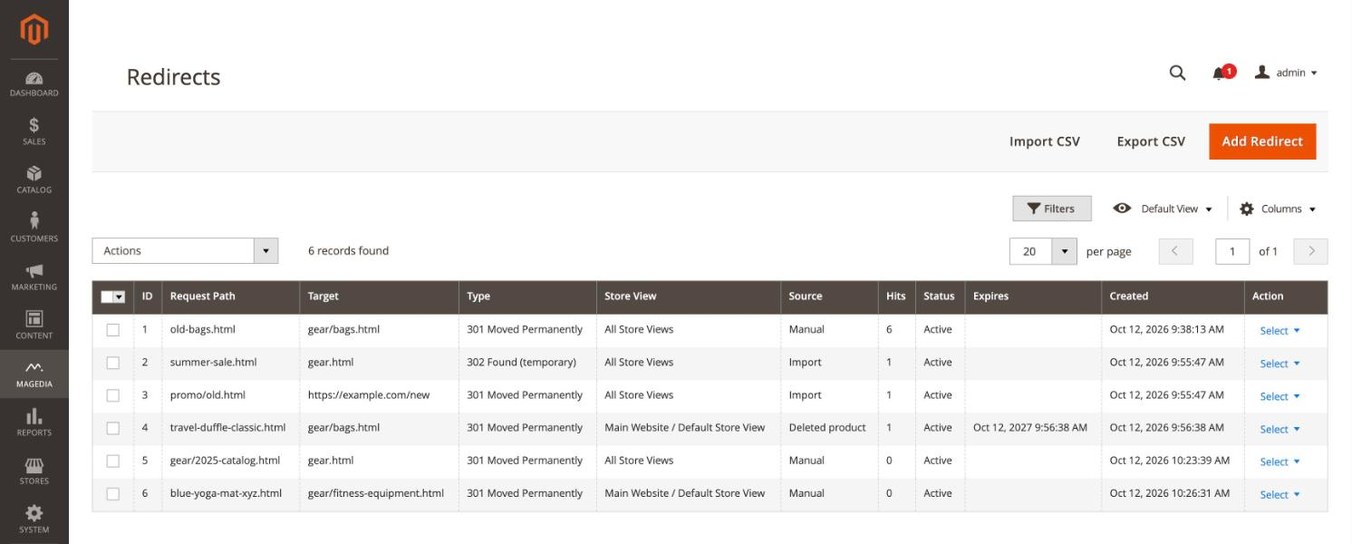
Open Magedia > SEO Toolkit > Redirects to add 301 (permanent) or 302 (temporary) redirects. Request Path is the old path without the domain; Target is a path on your store or a full URL. Set an Expires date for temporary campaigns. The grid shows how often each redirect was used.
Import CSV loads many at once; the first row must name the columns request_path,target_path,redirect_type,store_id,is_active, and only the first two are required. Export CSV downloads every redirect in the same format.
Under Redirects and 404 Pages in the configuration:
- Redirect Deleted Products (default Yes) turns a deleted product’s URLs into redirects to its primary category, kept for Keep Deleted Product Redirects, Days (default 365).
- Page Not Found (404): show the 404 page (default), redirect to the home page, or redirect to search results for the words in the URL.
- Log 404 Requests (default Yes): see broken URLs and how often they are requested under 404 Log, and click Create Redirect to fix one. Entries not requested again within Keep 404 Log Entries, Days (default 90) are removed nightly, and the log keeps at most Maximum 404 Log Entries (default 10,000), dropping the least requested.
7. Sitemaps
SEO Toolkit extends Magento’s XML sitemap (Marketing > SEO & Search > Site Map): add Additional Links, exclude product and category IDs or CMS pages, and leave out URLs matched by a NOINDEX custom robots rule. Image entries and file splitting stay under Catalog > XML Sitemap.
Enable HTML Sitemap Page (default Yes) publishes a page listing your categories and CMS pages, and optionally products, at the HTML Sitemap URL Key (default site-map), with a link in the footer.
8. Filter URLs, cross-links and llms.txt
SEO-Friendly Filter URLs (default No) changes filter links such as gear/bags.html?activity=8 into gear/bags/activity-yoga.html. Leave it off if another module already rewrites filter URLs.
Under Magedia > SEO Toolkit > Cross-Links, add keywords and the URL each should link to. SEO Toolkit links the first matches in product descriptions, category descriptions and CMS pages, never inside existing links or headings, up to Max Links per Page per keyword and Maximum Links per Page in total.
Serve /llms.txt (default No) publishes a short Markdown summary of your store, its categories and pages for AI assistants and AI search engines. Write a Store Summary and any Additional Details, such as shipping terms.
9. SEO audit
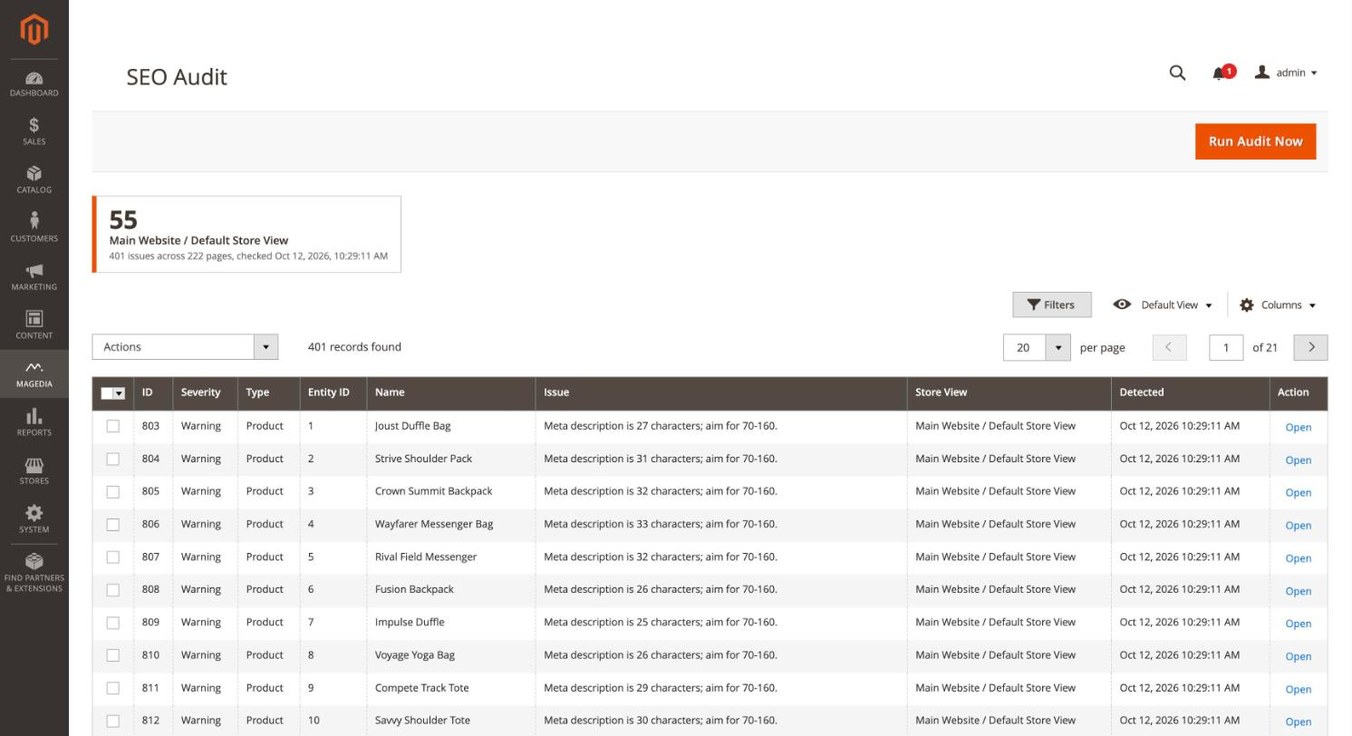
Open Magedia > SEO Toolkit > SEO Audit. The audit runs every night, or click Run Audit Now. On catalogs over 3,000 products, Run Audit Now hands the audit to cron, which runs it within a few minutes. It checks every enabled product, category and CMS page for missing, short, long or duplicate meta titles and descriptions (after templates are applied), missing images, thin content and broken internal links, and gives each store view a health score out of 100.
Filter the grid by severity or type and click Open to edit a page. The length limits are under SEO Audit in the configuration. For large catalogs, run the audit from the command line with bin/magento magedia:seo:audit.
10. AI meta suggestions
Under AI Meta Generation, enable suggestions, choose Anthropic Claude, OpenAI or Google Gemini, and paste your own API Key. Claude uses its current default model unless you enter one; OpenAI and Gemini need a Model name. Optional Brand Voice Instructions are added to every request.
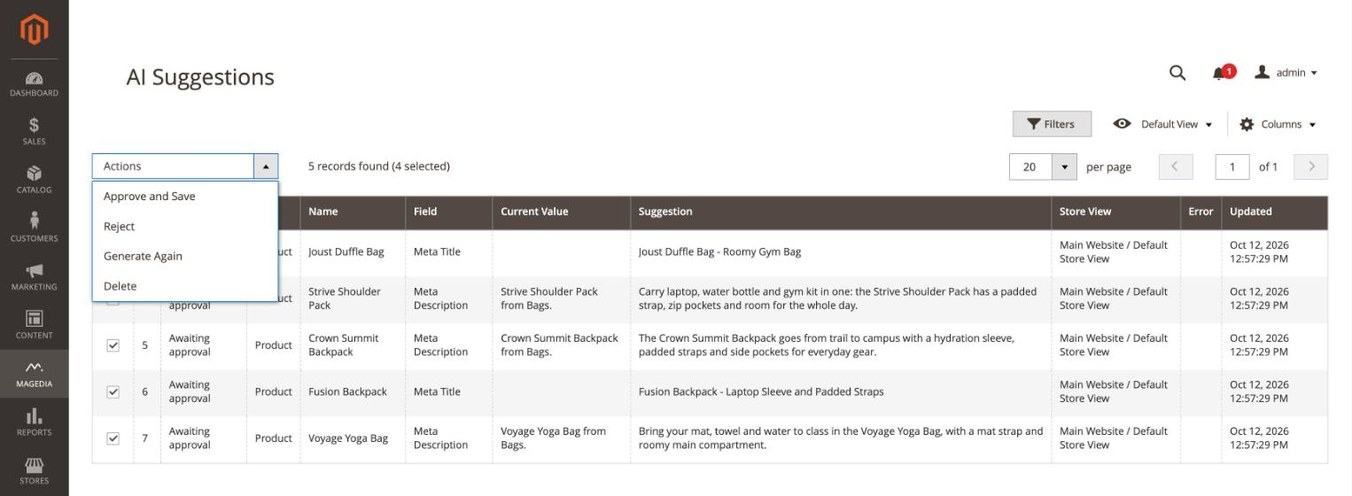
In the SEO Audit grid, select meta issues and choose Generate AI Suggestions. Cron writes the suggestions within a few minutes; when the provider is busy or unreachable, they stay queued and cron tries again. Review them under Magedia > SEO Toolkit > AI Suggestions next to the current values, then Approve and Save, Reject or Generate Again. Nothing changes on your store until you approve. Only the selected page’s name, description and attributes are sent to the provider you chose.
11. IndexNow and Google Search Console
Notify Search Engines of Changes (IndexNow) sends the URLs of products, categories and CMS pages you save to Bing, Yandex and other IndexNow engines, usually within 10 minutes. The key is generated for you and published at /{key}.txt. Google does not use IndexNow.
Import Search Performance brings clicks, impressions, click-through rate and average position per page from Google Search Console into Search Performance, once a day or with Import Now. Create a service account in Google Cloud, enable the Search Console API, download its JSON key and paste it into Service Account JSON Key. In Search Console, add the service account’s email as a user of your property, then enter the Property exactly as Search Console shows it.
12. Storefront toolbar, headless stores and command line
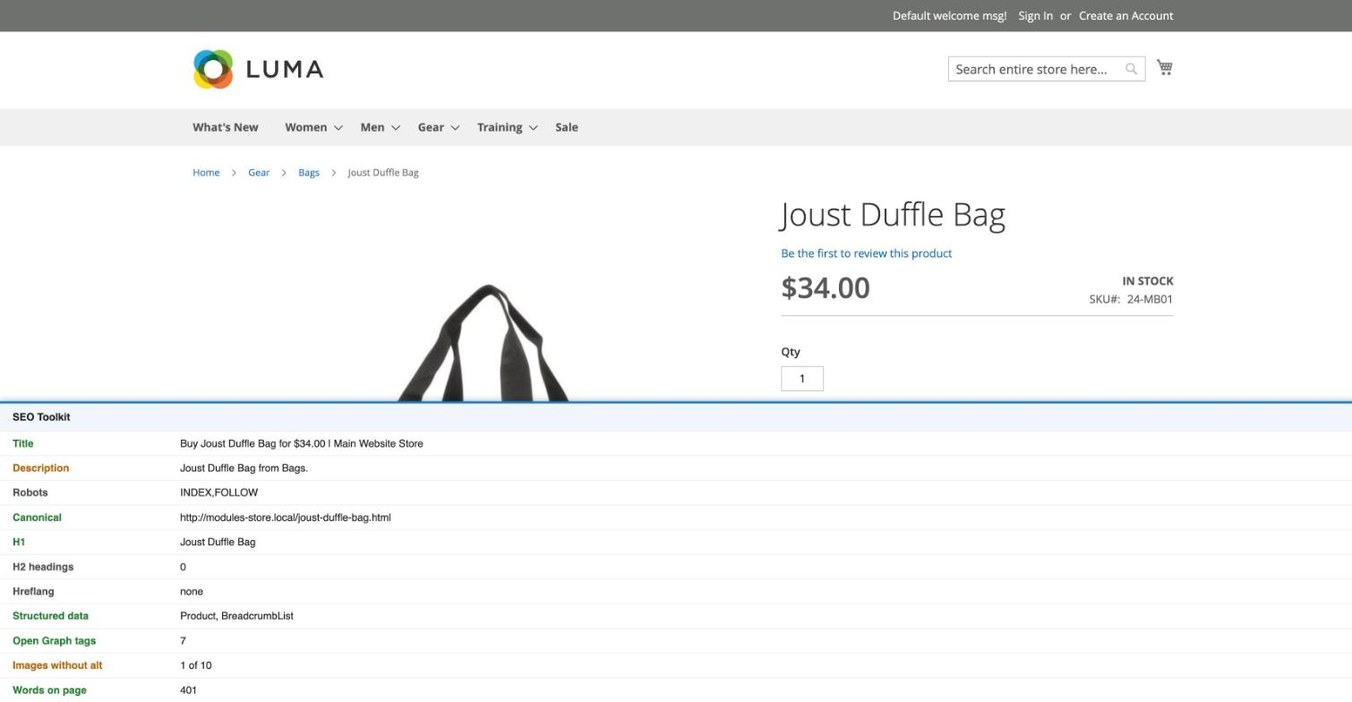
Enable the Storefront SEO Toolbar, add your IP address to Allowed IP Addresses, and add ?seo_toolbar=1 to any storefront URL. A panel shows the page’s title and description with their lengths, robots, canonical, hreflang, headings, structured data, images without alt text and word count. Pages with the toolbar are never cached, and other visitors never see it.
Headless and PWA storefronts read the same values through GraphQL: the magedia_seo field on products, categories and CMS pages, and the magediaSeoRedirect(url) query.
| Command | Purpose |
|---|---|
magedia:seo:audit |
Run the SEO audit |
magedia:seo:redirects:import <file> |
Import redirects from CSV |
magedia:seo:redirects:export [file] |
Export redirects as CSV |
magedia:seo:sitemap:generate |
Generate every XML sitemap |
magedia:seo:ai:generate |
Generate queued AI suggestions |
magedia:seo:indexnow:submit |
Submit queued IndexNow URLs |
magedia:seo:gsc:import |
Import Search Console data |